CREATE TABLE IF NOT EXISTS `Users` (
    `id` INT NOT NULL AUTO_INCREMENT,
    `email` VARCHAR(100) NOT NULL,
    `password` VARCHAR(60) NOT NULL, -- password will be hashed, 60 is the length for the hash
    `created` TIMESTAMP NOT NULL DEFAULT CURRENT_TIMESTAMP,
    `modified` TIMESTAMP NOT NULL DEFAULT CURRENT_TIMESTAMP ON UPDATE CURRENT_TIMESTAMP,
    PRIMARY KEY (`id`),
    UNIQUE (`email`)
)Project and SQL Setup
Matt Toegel matthew.toegel@njit.edu
First Steps for Project Setup
Create a new branch from
qacalledProjectSetupIn
public_html, create a folder calledprojectBe mindful of folder name casing; it matters when deployed
Inside
project, create anindex.phpfileReference: https://github.com/MattToegel/IT202-2025/blob/Module04-Project-Setup/public_html/project/index.php
Change your name in the
<h1>tag
Inside
project, create ansqlfolderCreate a
README.mdfile inside thesqlfolderCreate
init_db.phpinside thesqlfolder
| Tool was revamped 6/2025, make sure you’re using the latest version. |
It’s recommended to use the same casing for the folder names as shown above to avoid issues when deploying to a server. For example, use project/sql instead of Project/SQL. |
init_db.php Overview
Scans the directory for
.sqlfiles generally withCREATE TABLEorALTER TABLEstatementsSQL files must start with a three-digit number for sorting (e.g., 001, 002)
Queries the database (once) to check for existing tables and prevents re-running
CREATE TABLEYou’ll see a notice saying it was skipped (This saves query count in limited environments)
Runs the remaining queries and shows success/failure
Run this script after adding new
.sqlfiles to update the database structure(2025) Added a rate limit feature to deter abuse; 10 requests per minute
| updated to have a more pleasant output and to handle errors better |
Use Cases for init_db.php
Quick recovery after database failure/purge
Migration to another server; recreates the entire structure
| Not intended for production; it’s a development tool, but you’re free to build upon this outside of this course |
Creating the First Table
Create a
usertable with fieldsid- Auto increment; primary keyemail-VARCHAR; unique constraintpassword-VARCHAR; stores hashed passwordscreated- Timestamp; set automaticallymodified- Timestamp; set or updated automatically
Save the file as
001_create_table_users.sqlin theproject/sqlfolderApply changes via the
init_db.phpscriptAccess via URL:
http://localhost:3000/project/sql/init_db.phpCheck output for success
Using VS Code
Refresh the MySQL extension panel to view tables (refresh icon at the top)
Use the panel for query testing; avoid direct changes
Persist code in
.sql(structural) or.php(interaction) files
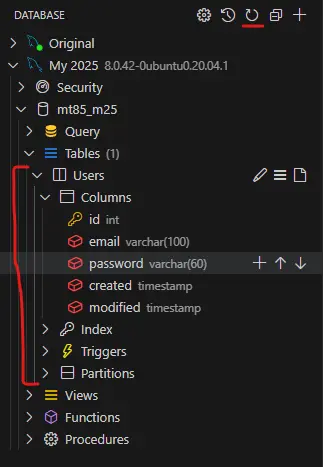
Figure 1. VS Code MySQL Extension Panel
Summary
Make structural changes in the
project/sqlfolderRun the
/project/sql/init_db.phpscript after adding new filesThis only needs to be done once per batch of changes since our
local,qa, andprodshare the same database connection
| Generally your lanes have split databases in real-world projects, but for this course we will use the same database across all environments to simplify the process |
Preserve history; don’t modify
CREATE TABLEdirectly; useALTER TABLEinsteadEnsure
.sqlfiles start with three digits (e.g.,001) for proper orderPush changes to the
ProjectSetupbranch and create a PR toqaComplete the PR
Update local to prepare for the next lesson
git checkout qagit pull origin qa
| PR stands for Pull Request and you’ll likely see the abbreviation used more often going forward. |