Getting Setup
Create an account or login to https://github.com
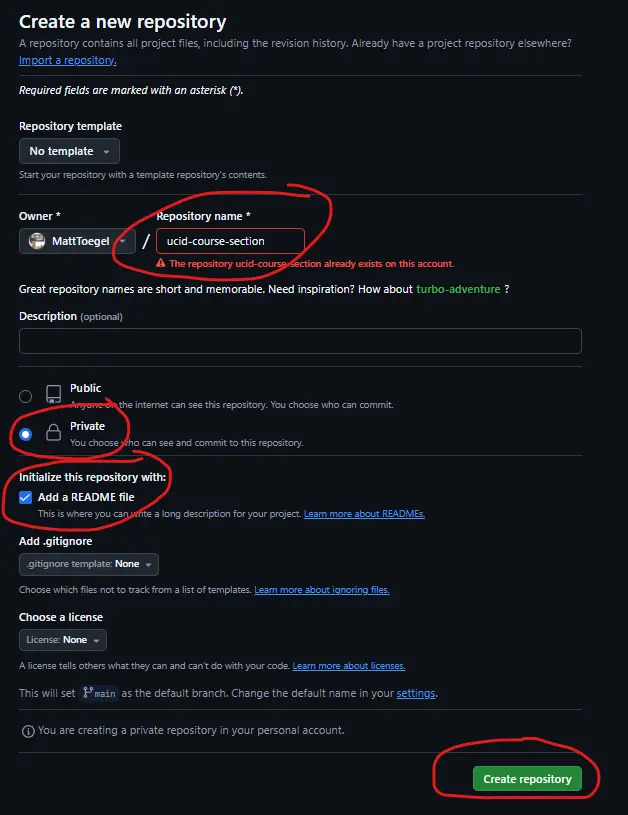
In the top right, click the + and choose "New Repository"
Name it [ucid]-[course]-[section] (i.e., mt85-IT000-000)
Check "Add a README file"
Leave "Add .gitignore" blank as we’ll create this later on
Click "Create Repository"
| Don’t literally name it [ucid]-[course]-[section] |
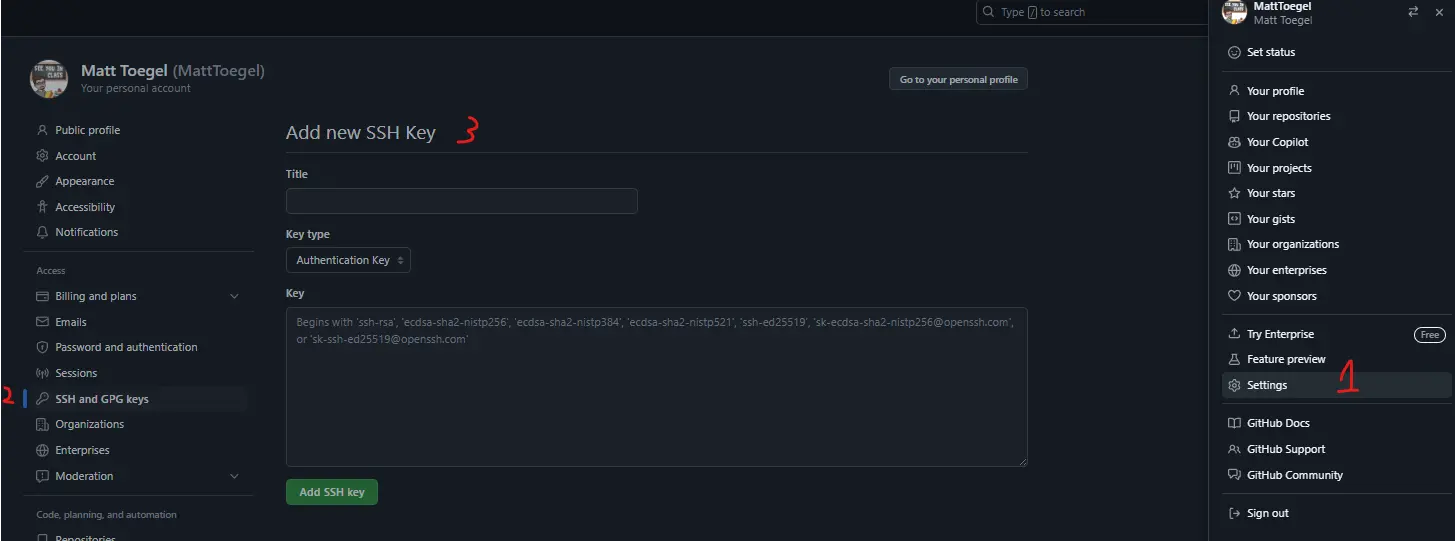
Create Your Key
| You only need one SSH key per machine per Github account and never share your private key with anyone |
Generate SSH key:
ssh-keygen -t ed25519 -C "your_github_email@example.com" (The C is uppercase)
Save it in your .ssh folder for consistency (follow the presented path in the parentheses and replace id_ed25519 with a more descriptive name, like github_key)
Optionally add a passphrase in the next step (will need to remake key if passphrase is forgotten)
Adding Keys to the Key Ring
If SSH-Agent issues occurred:
These commands add the private key to the current terminal session, if you close it you’ll need to rerun them
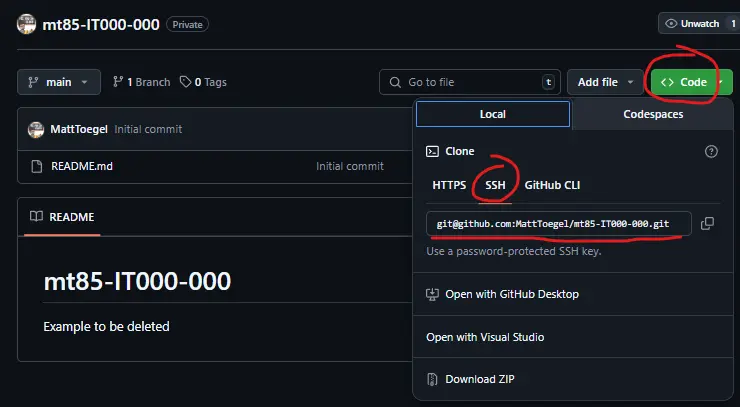
Re-Run git clone [SSH URL] if it had failed previously (don’t rerun it if it had worked)
| You’ll generally only need to clone your repo once per machine, refrain from repeatedly cloning as this will cause nested repositories and cause a lot of issues if not resolved.
This warning includes avoiding the usage of git init in the cloned repository directory. |
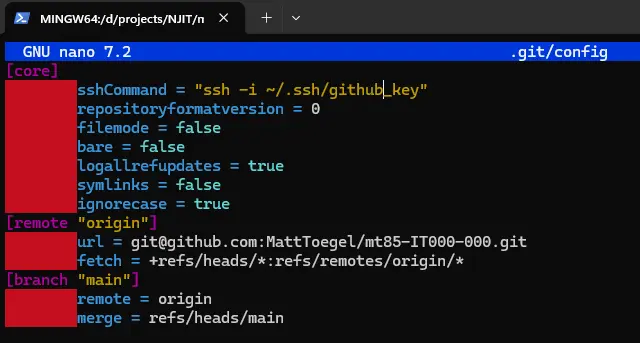
Appendix: Tell Git Which Key To Use
| Alternatively you can use the following command to set the SSH key for the current repository:
git config core.sshCommand "ssh -i ~/.ssh/github_key" |